SkyCanvas
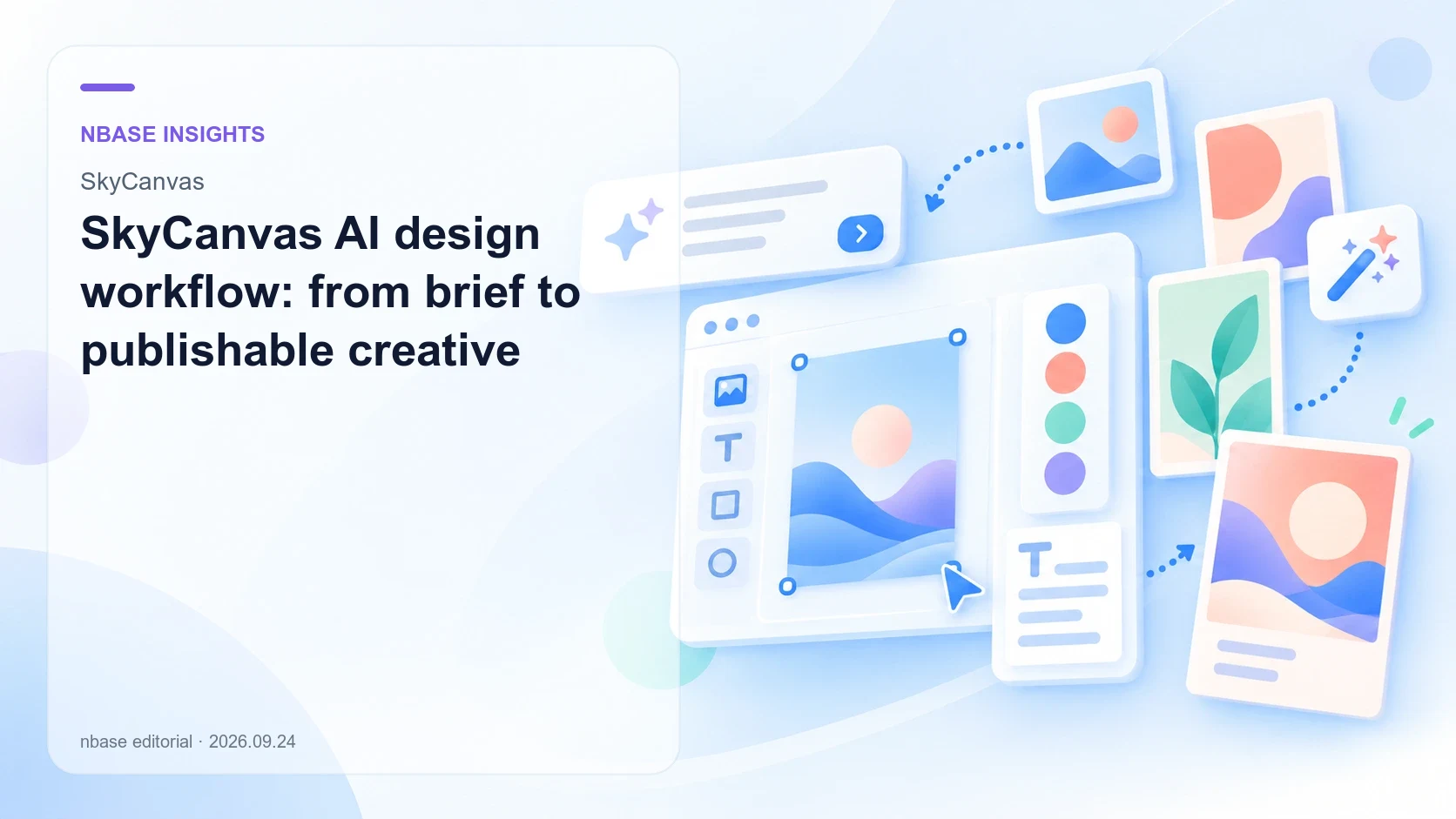
SkyCanvas AI design workflow: from brief to publishable creative
A practical workflow for briefing, generating, editing and checking promotional content before distribution.
What does this product help you solve?
From a local shop's new-menu promotion to a brand's social posts or an organization's event notice, SkyCanvas turns a plain-language brief into an AI-generated design you can refine. It helps you focus on the message and intended use instead of drawing everything on an empty canvas.
Capabilities and decision criteria
Start with a plain-language brief
Describe the purpose and content, such as a poster announcing a weekend brunch menu. Include dates, audience and tone so you have clear criteria for reviewing and refining the generated design.
Choose a format for the task
Work with posters, social images, card-style stories, flyers, banners and presentations. Select a format that fits the publishing channel and the context in which people will read it.
Use templates as a starting point
Adapt an existing design or use it to establish a creative direction. The supplied homepage redesign shows templates organized by use and industry; check the live service for the currently available selection.
Refine text, color and size
The service describes on-screen editing of text, colors and dimensions. Check prices, dates and contact information, then adjust the result to match your brand rather than publishing an unchecked first draft.
Save and continue your work
The official flow introduces signing in to keep designs and continue working. This can support recurring notices and seasonal promotions, not just one-off image creation.
Prepare files for publication
The public service describes PNG, PDF and PPT output and printing uses. Confirm format availability and editability for the design type, then review dimensions, resolution and line breaks before publishing.
Use scenarios
Local shops and small businesses
Prepare new-menu announcements, opening promotions or coupons for in-store and social use. Verify every date and price when updating recurring materials.
Brand and marketing teams
Explore multiple design directions around a campaign message, then adapt the selected direction to banners, social posts and other channels.
Organizations and educators
Create notices that make dates, participation instructions and contact details easy to find. Prioritize information and check the readability of small text and long sentences.
Illustrative workflows based on product capabilities, not verified customer deployments or performance results.
Implementation workflow
- 01
Define the message
Choose the channel, audience, required content and visual tone.
- 02
Start with AI or a template
Generate a draft from your brief or build on a supplied template.
- 03
Review and refine
Verify names, prices, dates and contact information; adjust text, colors and size.
- 04
Save and use
Export an appropriate format and inspect it in its final screen or print context.
Platforms and integration
A browser-based design workflow. AI generation, editing and saving/exporting were verified on the public service screen. Template discovery also references the supplied homepage concept. This introduction does not assume a desktop editor or enterprise API is available.
Practical checklist
- Define the dimensions, publishing channel and whether printing is required.
- Check permissions for reference photos, logos and copy, and verify the generated content.
- Confirm trial, credit, saving and export conditions in the live service.
Frequently asked questions
Do I need expert prompts?
The public interface encourages everyday language. Start with your industry, objective, required text and desired tone, then review the generated result.
Can I edit the result?
The service describes editing text, color and size on screen. The available editing and export options may vary by design type and generation method; check that they meet your needs.
What should I check before commercial use?
Review the actual terms and rights for uploaded images, fonts and trademarks. AI generation does not automatically resolve all third-party rights.
Official sources and earlier articles
This article summarizes and interprets the sources below. Features and conditions may change.
- SkyCanvas official serviceSkyCanvas
- SkyCanvas account startSkyCanvas